How to Browse the Web Without a Trace
Did you know that when browsing a web page, there's also a world behind the curtain? It's an invisible world where possibly even more happens than in the visible one. In the background, while you surf, scripts often run that collect information about you, based on which you can be tracked across the entire web. In this article, we'll show you how to defend against this and how to browse without a trace. In the solution I present, I'll try to describe things in detail and clearly — the internet is already full of superficial guides.
Remember, even if you're not an IT specialist, simply installing the mentioned software will help significantly reduce the spying you're subjected to. At least partial privacy protection on the web is better than none — life is a compromise.
Mullvad Browser
Mullvad browser is an open source web browser that we'll use for browsing. You might be wondering how I came to the conclusion that this one is the best? I took the time to study the opinions of the community of people and experts who deal with digital privacy. And so it wouldn't just be subjective chatter, below I present facts to support my claim.
Mullvad Browser is the result of a unique collaboration between Mullvad VPN and the Tor Project. It was created with a single goal: to provide users with Tor Browser-level privacy, but without the need to use the slow Tor network. Instead, it's designed to be used together with a trusted VPN. It's a hardened Firefox with the uBlock Origin add-on. It's currently the best privacy browser on the market and a great alternative to both Chrome and Firefox. You can download it here: mullvad.net/en/download/browser/linux. For installation on Linux, follow the brief guide on the website (it's just copying commands into the terminal). For Windows, simply download the installation package.
On the website privacytests.org you can see how Mullvad browser performs in various tests.
Here is a detailed comparison and explanation of what exactly Mullvad Browser does for privacy protection and how Mullvad Browser is better than regular Firefox.
Tab. 1: Comparison of Firefox and Mullvad Browser
| Aspect | Firefox (standard) | Mullvad Browser |
|---|---|---|
| Telemetry | Collects usage data (can be disabled in settings) | Completely removed from code |
| Fingerprinting | Only blocks tracking scripts (ETP) | Actively spoofs and unifies fingerprint |
| Default settings | Requires manual hard tuning | Strict privacy "out of the box" |
| Built-in content | Contains Pocket, sponsored tiles | All commercial elements removed |
| Base | Standard Firefox from Mozilla | Tor Browser (modified without Tor network) |
While Firefox focuses on not letting third-party websites track you, Mullvad Browser goes a step further: it tries to make you look like someone completely different on the internet (or more precisely, like every other Mullvad Browser user, so you "blend in with the crowd").
What does Mullvad Browser do for privacy?
Mullvad Browser adopts technology from Tor Browser and applies it to regular browsing.
1. Fingerprint Unification (Key Feature)
In Firefox, every user has a different fingerprint (browser print) based on installed fonts, screen resolution, graphics card (WebGL), and hardware. Mullvad Browser spoofs or unifies these values. All Mullvad Browser users have the same fingerprint, making tracking via fingerprinting completely ineffective. This feature is taken directly from Tor Browser.
2. Amnesia on Restart
The browser, by default, forgets everything when closed — cookies, history, cache, open tabs, and sessions. When you reopen it, it's as if you logged in from a fresh clean install. This prevents long-term profiling.
3. Pre-installed uBlock Origin
Mullvad Browser includes uBlock Origin. The Tor Project normally recommends not installing extensions because they increase the chance of a unique fingerprint. uBlock Origin is an exception, however, because blocking ads and tracking scripts in the background speeds up page loading and reduces the amount of data the browser would otherwise send to third-party servers.
4. WebRTC Leak Blocking
WebRTC technology (used e.g. for browser calls) is known to bypass VPN and reveal your real local IP address. Mullvad Browser has WebRTC strictly isolated and blocked to prevent this leak.
5. State Partitioning
The browser stores data (cookies, cache) in separate "buckets" for each website. A script on website A cannot read data created by website B. This drastically limits cross-site tracking capabilities.
6. No Phoning Home
Firefox downloads lists of recommended extensions, HTTPOnly cookie lists, etc. on startup or installation. Mullvad Browser completely omits these "phone calls home" to Mozilla to prevent correlation of your IP address with browser usage.
Key Difference from Tor Browser
It's important to understand that Mullvad Browser does not provide Tor-level anonymity. The Tor network hides your IP address. Mullvad Browser does not hide your IP address (unless you use a VPN). If you use Mullvad Browser without a VPN, websites see your IP address and thus your website visits (how to limit this, see the VPN chapter).
uBlock Origin

uBlock Origin (uBO) is an open source add-on developed in 2014 by Raymond Hill. uBO is a wide-spectrum content blocker for Chromium, Firefox, and compatible browsers with low CPU and memory usage. In Mullvad, it's already pre-installed (you'll find it in the upper right corner in the installed add-ons area, it has a red shield icon). If it's not there, you can install it from here: addons.mozilla.org
By default, it blocks ads, trackers, coin miners, pop-ups, sites with malicious software, etc. using filter lists EasyList, EasyPrivacy, Peter Lowe's Blocklist, Online Malicious URL Blocklist, and uBO. Many additional lists are available that allow even more blocking. Your own custom filters are also supported. uBO uses EasyList filter syntax and extends it with custom rules and filters.
If you feel uBO blocks too much, you can easily deselect all preset filter lists.
If you want more control over uBlock Origin, you can use its "advanced mode." Just go to Settings and check the "I am an advanced user" box (in the image at the bottom left corner).
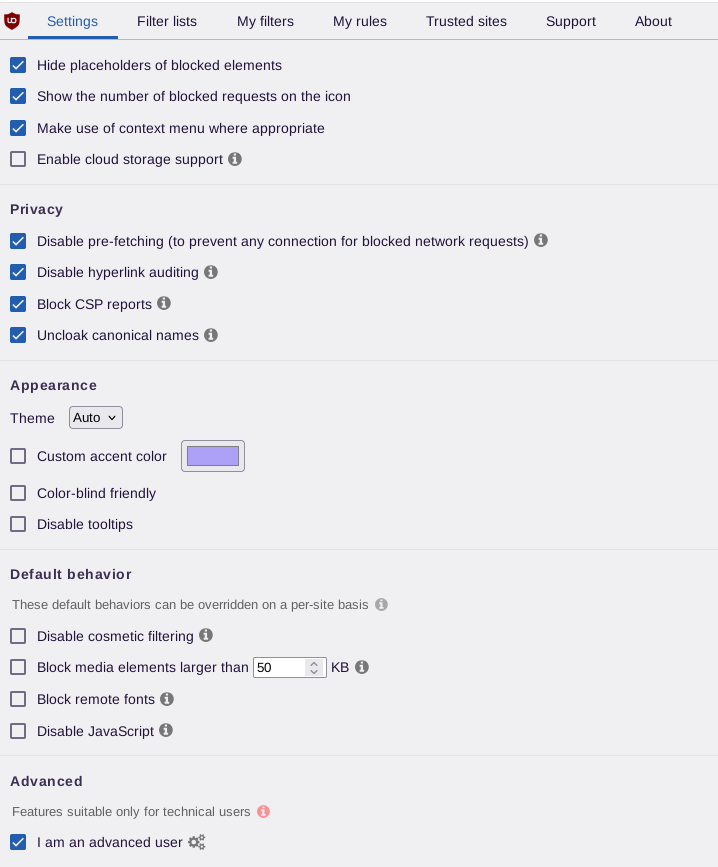
Fig.1: Advanced mode settings
User Interface (UI) Description
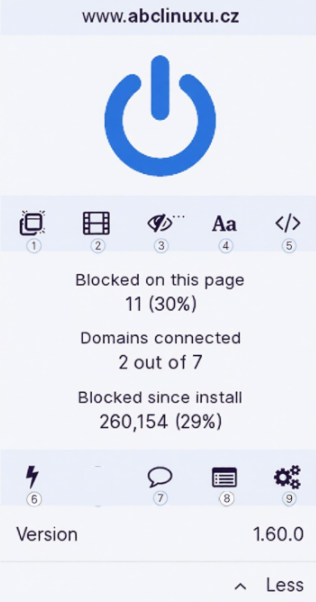
Fig.2: User interface
In the image above, you can see the basic uBO user interface. I've numbered the individual controls and below I describe their functions.
- No popups: When you enable this switch, all pop-ups will be unconditionally blocked for the current website, regardless of filters.
- No large media elements: Blocks large media elements (images, videos, audio) for the current website. The main purpose is saving bandwidth (data volume). A side effect is possible faster page loading.
- No cosmetic filtering: Disables cosmetic filtering ("element hiding") for the given website. Cosmetic filters serve to hide content that cannot be blocked by network filters.
- No remote fonts: Prevents downloading web fonts (remote fonts) for the current website.
- No scripting: Completely disables JavaScript for the given website.
- Lightning (Element Zapper): Temporarily removes elements from the website without creating filters (valid only for the current session). You can remove e.g. a paragraph, image, button, entire block, or section from the page. It's good for removing annoying elements.
- Bubble: Reporting issues with uBO.
- Logger: Live recording of network activity, what's being blocked right now.
- Settings: Basic extension settings.
Blocked on this page 11 (30%): Number of blocked requests on this page (11) and percentage (30%).
Domains connected 2 out of 7: Number of domains communicating with this page (2 out of 7 total).
Blocked since install 260,154 (29%): Total number of blocked requests since uBO installation (260,154) and blocking success rate.
Filtering
Static filtering
Refers to filters that come directly from specific filter lists mentioned above (e.g. EasyList, EasyPrivacy, etc.).
Filter lists (EasyList, etc.):
- Block specific known domains — those someone added to the list
- Are reactive — someone must discover and add a domain to the list
- A new tracker from an unknown domain passes until added to the list
Dynamic filtering
Dynamic filtering consists of filtering rules with firewall characteristics. Dynamic filtering rules are superior to static filtering rules, meaning dynamic filtering can override all existing static filters with permission.
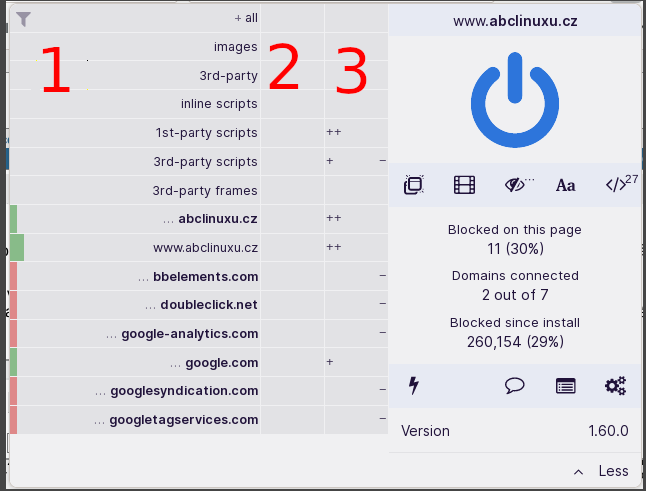
Fig.3: Extended UI with dynamic filtering rules
Explanation of the individual parts of the image.
The colored bars on the left edge give you an overview of when all network requests to specific hostnames were blocked (reddish), when all were allowed (greenish), or when some were blocked and some allowed (yellowish). The wider, more prominent bar indicates the root context — the hostname for which local rules and filters are created.
First column: What should be dynamically filtered.
Second column: Global dynamic filtering rules, i.e. any rule listed in this column applies everywhere and on all pages.
Third column: Local dynamic filtering rules, i.e. any rule listed in this column applies only to the current website.
In the upper part of the first column, you can see the following items:
| Item | Description |
|---|---|
| images | Images loaded by the page. Blocking hides ad banners but may break website navigation if the site uses images as buttons. |
| 3rd-party | All requests to third-party domains (images, scripts, styles, fonts). Main switch for blocking everything not from the domain you're currently on. |
| inline scripts | JavaScript directly in HTML code. |
| 1st-party scripts | Scripts from the same domain. |
| 3rd-party scripts | Scripts from third-party domains (ads, trackers). |
| 3rd-party frames | Nested frames (iframes) from third-party domains. Often used for embedding videos, ads, social buttons, or widgets from other servers. Blocking prevents loading of these elements. |
Cells in the third column provide an overview of how many requests were blocked/allowed:
-or+= 1–9 network requests were blocked or allowed respectively--or++= 10 to 99 network requests were blocked or allowed---or+++= 100 or more network requests were blocked or allowed- empty cell = no network requests recorded for the specific hostname
What exactly should I imagine under the term network request?
When you open a web page, your browser doesn't just do one thing. It constantly asks various servers for data to assemble the page. Each such "asking" is one network request.
Imagine you open amazon.com. That's not one file, it's a set of instructions. The browser reads the HTML (skeleton) and determines: "Ah, to show this article, I need to download 15 images, 3 style files (CSS), 5 scripts (JavaScript), 2 videos, and 4 ad banners."
Each of these downloadable elements is one network request. The browser therefore sends 30 separate requests to various servers in the background. What counts as a network request, see below.
Tab. 2: Types of network requests
| Request type | Example |
|---|---|
| Main document | The HTML page itself |
| Scripts | .js files (website functionality, but also trackers) |
| Styles | .css files (how the website looks) |
| Images | .jpg, .png, .webp (photos, icons, ad banners) |
| Fonts | Font files (e.g. Google Fonts) |
| Video/Audio | .mp4, .mp3 |
| Iframes | Nested pages (e.g. embedded YouTube video) |
| XHR/Fetch | API calls (e.g. loading more comments, sending analytics) |
| WebSocket | Persistent connection (e.g. live stock prices) |
uBlock Origin sits between your browser and the internet. It acts as a gatekeeper. Every time the browser wants to make a network request (download something), uBO sees it.
- uBO looks at the rules. Is it an ad? Is it a tracker? Is it a dangerous script?
- It decides.
- If the request passes (it's a needed image), it's an allowed request →
+ - If the request is stopped (it's an ad), it's a blocked request →
-
- If the request passes (it's a needed image), it's an allowed request →
Examples:
amazon.com: +++(100+ requests allowed — downloading articles, images, own scripts)doubleclick.net: ---(100+ requests blocked — Google tried 150 times to load ads/trackers and uBO stopped it every time)fonts.googleapis.com: +(Less than 10 requests allowed — 2 font files downloaded)
So there are global dynamic filtering rules and local dynamic filtering rules. By default, no dynamic filtering rules exist upon installation, so dynamic filtering blocks nothing by default. You'll need to create your own rules according to your own preferences.
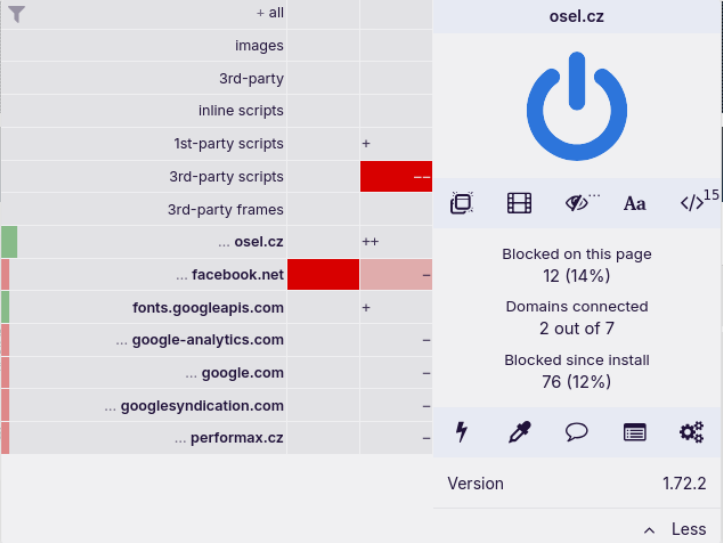
Fig.4: Example of global and local rules
When we click in column 2 (global rules) in the right part of the cell for facebook.net, the cell turns dark red and blocks the JS script from Facebook. But beware, because it's a global rule, it will also apply to all other visited websites. If we want to cancel the rule, we click in the left part of the same cell. I'll add to this rule that in column 3 (local rules), the cell for facebook.net turned light red — that's a symbol of inheritance from the global rule.
Finally, I also clicked in column 3 (local rules) for the 3rd-party scripts item in the right part of the cell. The entire cell turned red, which means that on this website (osel.cz), third-party scripts will not be downloaded and therefore executed. Since it's a local rule, it will only apply to this domain (osel.cz).
Finally, I'll add that we can block JS on a visited website with the </> button. This blocks all JS completely (overrides other settings). Some websites may break, it depends from site to site. To find out whether it will or not, we need to experiment. When you create a rule as I described above, a lock icon appears in uBO — click it and the rule will be saved and therefore permanent.
Even if we didn't use our own dynamic filter settings and only had the static ones, it's still better than not using uBO at all. Better partial defense than none.
And finally, let's look at Settings → My rules (see image below). In this setting, we can see in text format the dynamic rules we've set. Every time we add a rule, a line (record) is added to My rules. We can experiment and try adding rules while seeing how the rule will look in text form. Then we can edit it and customize it to our wishes.
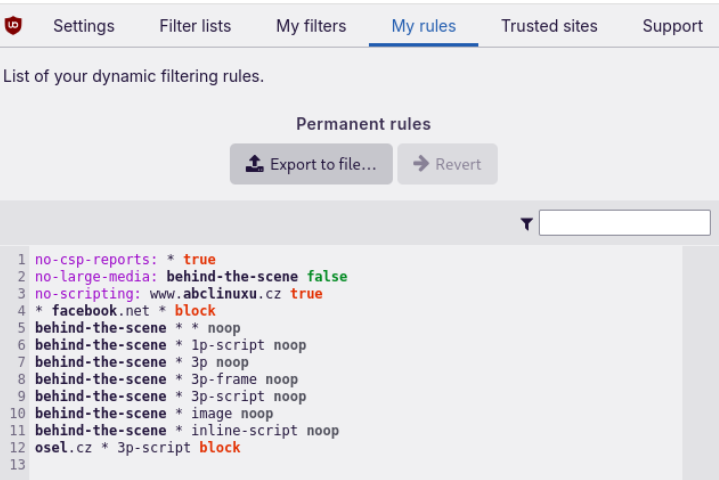
Fig.5: Dynamic rules in text format
Below is a brief help regarding the rules written above.
A rule always consists of the following components:
source target type action
Tab. 3: Valid rules
| source | target | type | action |
|---|---|---|---|
| * hostname |
* | * | block |
| image | |||
| inline-script | |||
| 1p-script | noop | ||
| 3p | |||
| 3p-script | allow | ||
| 3p-frame |
Examples of writing dynamic rules in text format in practice:
* facebook.net * block                       # global rule, block facebook.net on all domains

osel.cz * 3p-script block                    # local rule, block 3rd-party JS on domain osel.cz

no-scripting: www.abclinuxu.cz true          # complete JS blocking on domain www.abclinuxu.cz (via </> control)
Tab. 4: Dynamic filtering reference
| hostname & type | global dynamic filtering |
|---|---|
| all: | * * * block |
| images: | * * image block |
| third-party: | * * 3p block |
| inline scripts: | * * inline-script block |
| first-party scripts: | * * 1p-script block |
| third-party scripts: | * * 3p-script block |
| third-party frames: | * * 3p-frame block |
Rule documentation here: github.com/gorhill/uBlock/wiki/Dynamic-filtering:-rule-syntax
Fingerprint
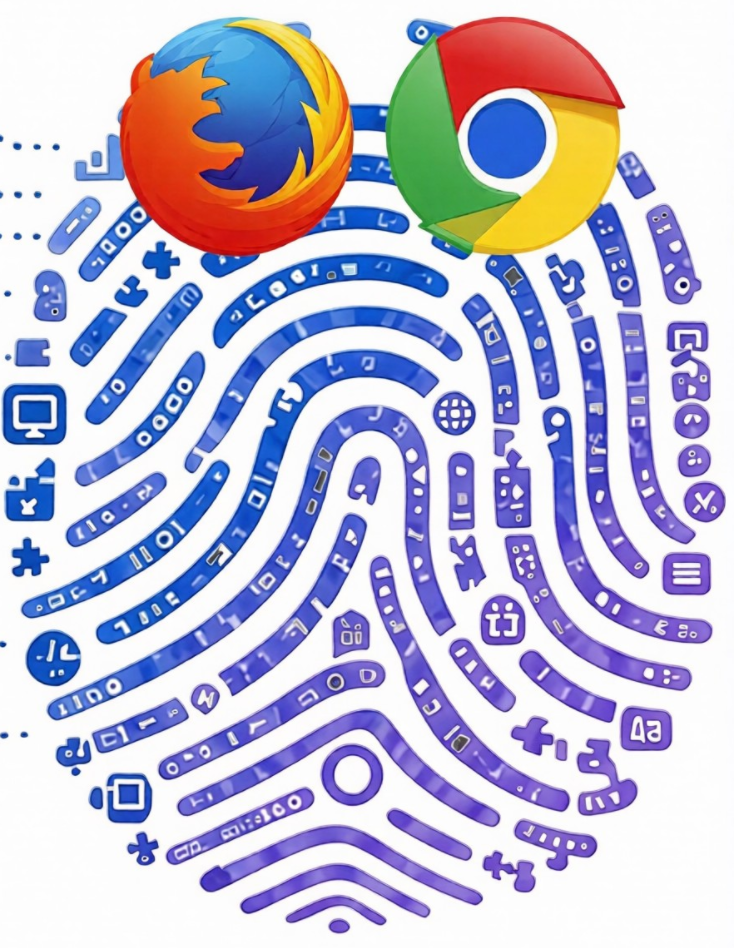
Device fingerprint or browser fingerprint is information collected about a remote device for identification purposes. Fingerprints can be used for complete or partial identification of individual users or devices.
This means that when you connect to the internet on your laptop or smartphone, your device hands over a set of specific data to the receiving server.
Browser fingerprinting is an effective method used by websites to collect information about your browser type and version, as well as your operating system, active plugins, time zone, language, screen resolution, and various other settings.
This data may seem quite general at first glance and may not give the impression of being tailored to identify one specific person. However, there's a significantly small chance that another user will have 100% identical browser information.
Websites collect large amounts of visitor data to later compare with browser fingerprints of known users.
CSS
Fingerprinting is possible even without JavaScript. Blocking JavaScript significantly limits fingerprinting capabilities but doesn't eliminate it completely. There are methods that work without JS or at the network level.
Tab. 5: CSS fingerprinting methods
| Method | How it works | Effectiveness |
|---|---|---|
| Font detection | CSS measures the width of rendered text with different fonts. Installed fonts vary by OS and device. | Medium |
| Media queries | @media (min-width: 1920px) reveals screen resolution. prefers-color-scheme reveals dark/light mode. | Medium |
| CSS timing | Measuring loading time of @import or background-image can reveal cache state. | Low |
Protection against CSS fingerprinting
CSS fingerprinting uses styling to measure your environment. Browsers like Mullvad Browser or Tor Browser have strong built-in defenses against this, but regular Firefox or Chrome need add-ons or settings.
A. Font Detection (Most common CSS method)
A website uses CSS to set text to a font you may have installed (e.g. "Comic Sans MS"). If the text width changes after the font change, the website knows you have this font installed. Installed fonts are very unique (they vary by OS, installed programs like Office, etc.).
How to protect yourself:
Mullvad/Tor Browser: Limits the list of fonts websites can use to a few basic ones. Your own fonts are never disclosed.
B. Media Queries (Resolution and colors)
CSS can detect screen resolution (min-width), pixel density (min-resolution), and whether you use dark mode (prefers-color-scheme: dark).
How to protect yourself:
Letterboxing (Mullvad/Tor): The browser sets the window to a fixed size (e.g. 1000x1000) and covers the rest of the screen with white borders. The website always sees only 1000x1000, whether you have a Full HD or 4K monitor.
TLS
TLS fingerprint is "baked" into the browser's network stack and no extension (including uBlock Origin) has access to it. The table below shows what happens at which layer and who controls it.
Why uBO doesn't help with TLS fingerprinting?
Tab. 6: Network layers and TLS fingerprint
| Layer | What happens | Who controls it |
|---|---|---|
| TCP/TLS (layer 4) | JA3/JA4 hash is created here | Browser core (NSS/OpenSSL) |
| HTTP (layer 7) | uBlock Origin works here | Browser renderer |
uBlock Origin blocks requests at the HTTP level, but the TLS handshake has already occurred before uBO even knows something is about to be downloaded.
JavaScript
JS is the most common fingerprinting method. Below is a table showing which methods are used for fingerprinting.
Tab. 7: Functions blocked by disabling JavaScript
| Function | Without JS |
|---|---|
| Canvas fingerprinting | Blocked |
| WebGL fingerprinting | Blocked |
| AudioContext fingerprinting | Blocked |
| Battery API | Blocked |
| Keyboard/mouse collection | Blocked |
| Font detection via JS | Blocked (but CSS works) |
Blocked JS completely disables all these methods.
Tab. 8: What Mullvad Browser can and cannot do for fingerprinting protection
| Layer | Mullvad can? | Method |
|---|---|---|
| Canvas | Partially | Adds noise |
| WebGL | Partially | Unifies renderer |
| Fonts | Yes | Limits font list |
| Screen resolution | Yes | Reports fixed resolution |
| Timezone | Yes | Reports UTC |
| User-Agent | Yes | Reports unified UA |
| TLS fingerprint | No | NSS is fixed |
| HTTP/2 fingerprint | No | Firefox impl. is fixed |
| JS engine | No | SpiderMonkey is fixed |
| TCP/IP fingerprint | No | OS-dependent |
Can change: Canvas, fonts, UA, timezone
Cannot change: TLS fingerprint (NSS), HTTP/2, JS engine
You can find out how much websites know about us on testing pages like fingerprintjs.github.io, browserleaks.com, or pixelscan.net.
As an example, here's a screenshot from pixelscan.net.
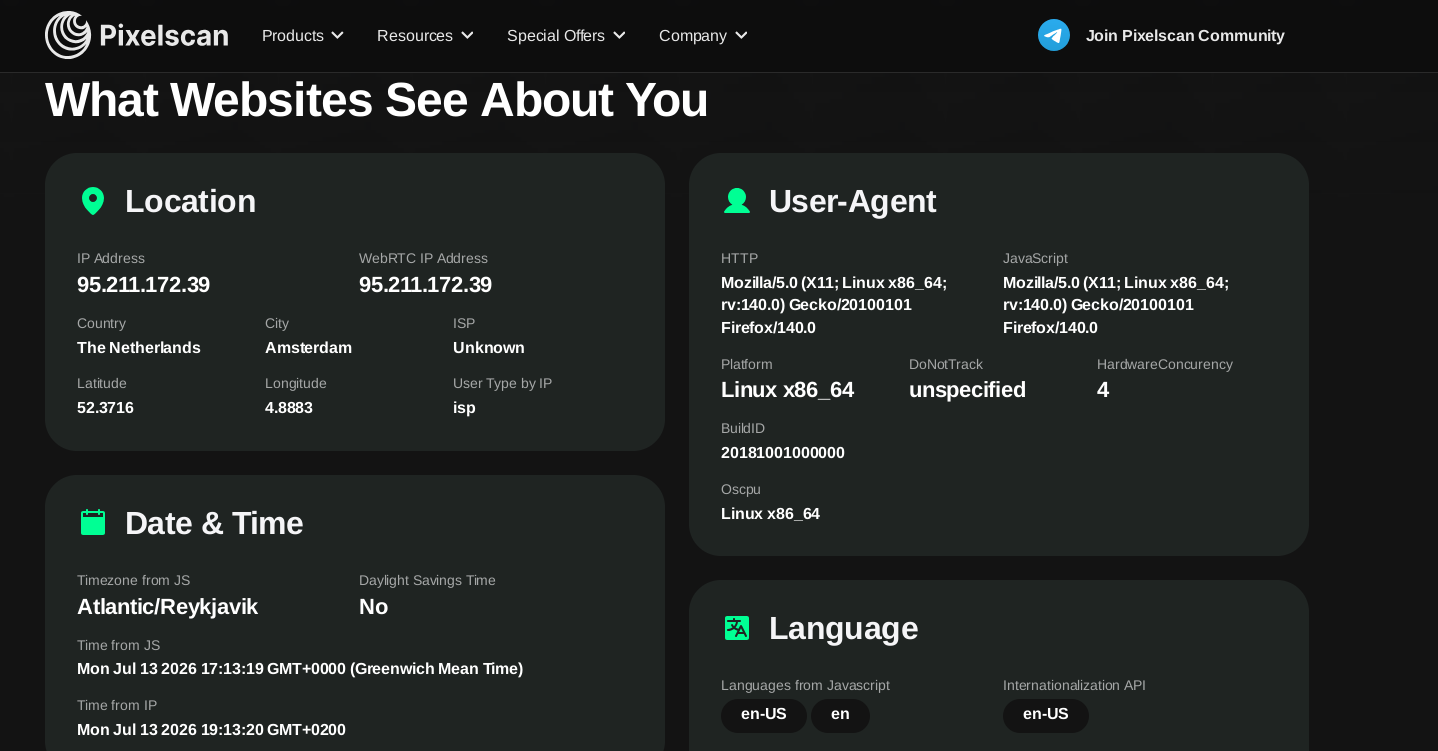
Fig.6: Info websites know about us with JS enabled
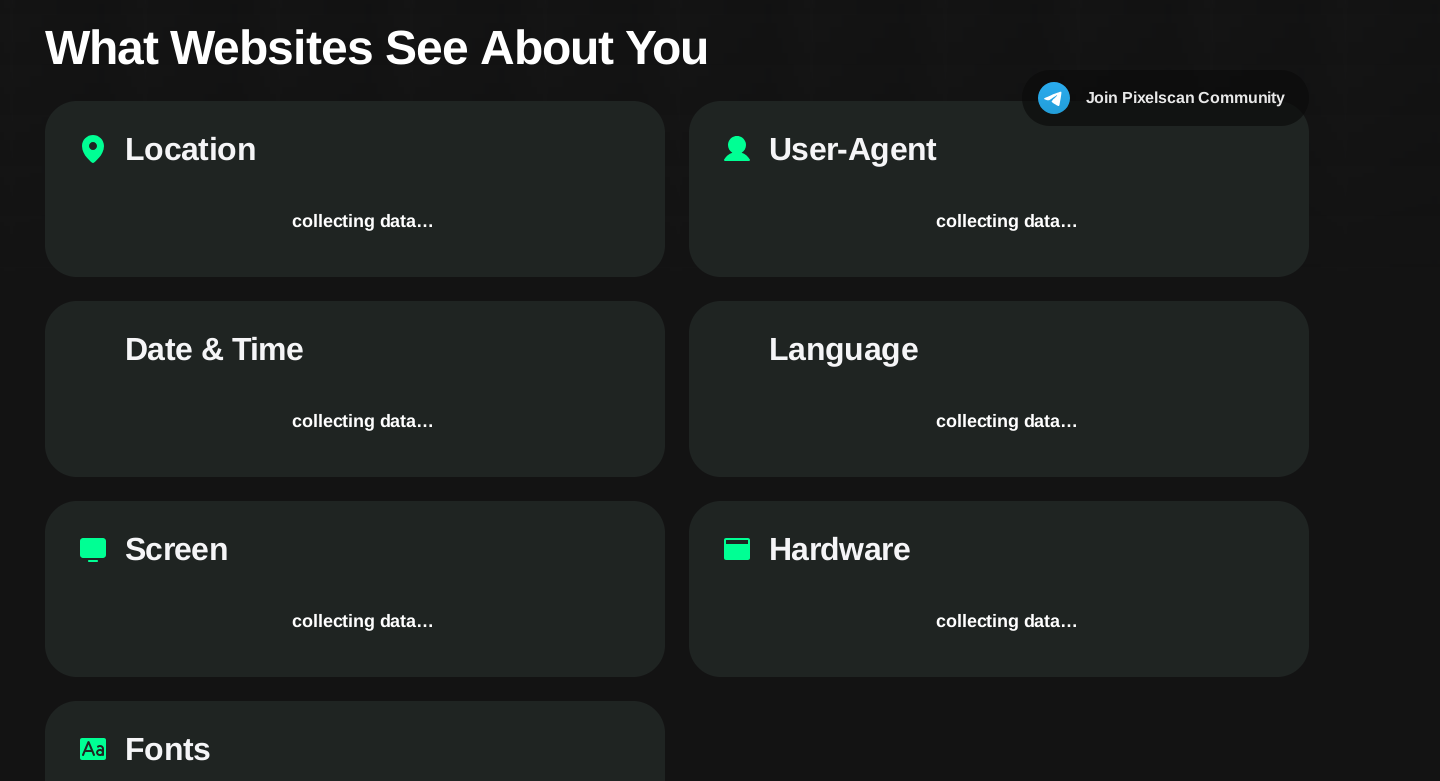
Fig.7: Info websites know about us with JS disabled
How to disable JS and thereby block fingerprinting was shown in the uBlock Origin chapter. When we disable JS, we significantly reduce the possibility of identification.
Finally, let's outline a few basic scenarios showing what and how much helps against fingerprinting. For example, how it helps that we use Mullvad browser, that we have JS disabled, or whether using a VPN has any effect.
Tab. 9: Identifiability scenarios by protection settings
| Scenario | Our settings | Identifiability (what the web server sees) |
|---|---|---|
| 1 | JS enabled (using no protection) | 99% (Gives us away: Canvas + WebGL + fonts + etc.) |
| 2 | JS blocked | 30–40% (Gives us away: CSS + HTTP + TLS) |
| 3 | JS blocked + Mullvad Browser | 10–15% (Gives us away: TLS + HTTP/2 + your IP address) |
| 4 | JS blocked + Mullvad Browser + VPN | 5–10% (Gives us away: only TLS and HTTP/2) |
The listed percentages are only rough estimates, not precise measurements.
SearxNG

I'd like to mention SearxNG here for one purpose. It's one of the layers of fingerprinting protection. SearxNG is a metasearch engine, which means it doesn't have its own search engine but aggregates various search engines. We're interested in Google because we want its results but don't want it to fingerprint us. It will be like searching on Google, but without Google. Between us and Google, there will be an intermediary — SearxNG. It will act as an impenetrable wall when Google tries to fingerprint our web browser.
You <--> SearxNG <--> Google
Public Instances
On the website searx.space we can find a list of publicly operated and available instances. Just click the URL link in the first column and we're on the metasearch engine. In the upper right corner is settings (Preferences), where we can configure various metasearch engine parameters. We'll be most interested in the "Engine" tab, where we leave only Google checked. In the bottom left corner, click save. And we can search knowing Google isn't fingerprinting our browser, because there's an intermediary between us and Google.
Risks of public instances
Although SearxNG protects against fingerprinting by Google, the operator of a public instance can technically see your search queries. If they log queries, they have your search profile. Therefore, a private instance is safer — you are the operator yourself and know nothing is logged.
When searching, it's also common for it to end with an error, e.g.: Suspended: too many requests. This happens with public instances. If we still want to stick with Google, we have no choice but to create our own private instance.
Private Instances
You might be wondering why run your own instance. Well, it's because public ones can't be fully relied upon. They can disappear overnight or are accessible but search doesn't work. Running a private instance requires IT knowledge, at least the basics. Describing how to do it is beyond the scope of this article, so I'll leave that to each of you. Nevertheless, for those who would be really interested, I'll write at least in points what needs to be done.
- find a VPS provider on the internet and create your own VPS with Linux (VPS rental cost approx. 10 Euro/month)
- find a chatbot that gives you instructions on how to install a SearxNG docker container (I recommend the Venice.ai platform and the GLM chatbot)
- finally, all that's left is to configure your Searx instance, that's in the
settings.ymlfile
To save you time with configuration, here are parts of the configuration (settings.yml) that I changed myself.
search:
  safe_search: 0
  autocomplete: "bing"        # Autocomplete engine will be Bing (Searx currently has problems with Google's autocomplete, so temporarily using Bing)
  autocomplete_min: 1         # Autocomplete will start from the first typed letter.

outgoing:
  request_timeout: 10.0
  max_request_timeout: 15.0
  retries: 1
  retry_on_http_error: [408, 429, 500, 502, 503, 504]

# Here I define that the only search engine will be Google

engines:
- name: google
  disabled: false
  use_mobile_ui: false
- name: duckduckgo
  disabled: true
- name: brave
  disabled: true
- name: startpage
  disabled: true
- name: bing
  disabled: true
- name: qwant
  disabled: true
- name: wikipedia
  disabled: true
VPN
VPN, or Virtual Private Network, is a tool used to mask (hide) your IP address. It's an encrypted tunnel between you and your destination. Your data is encrypted on your end and sent to a VPN server. There, the data is decrypted and sent to the target server. Let's illustrate this best with an example. You're on a PC and want to connect to the server amazon.com via VPN. On your PC (you're the VPN client), the data is encrypted, sent to a VPN server, the so-called exit node, where it's decrypted and goes to amazon.com. The amazon.com server sends a response and it reaches you via the same path.
Your ISP therefore doesn't see that you communicated with amazon.com and it doesn't see your IP address, because the connection to it was from the VPN server through which you're connected to the internet.
WebRTC leaks
WebRTC technology (used e.g. for browser calls) can bypass VPN and reveal your real local IP address. Mullvad Browser has WebRTC strictly isolated, but regular Firefox or Chrome need an add-on like "uBlock Origin" with WebRTC blocking enabled, or manual WebRTC disabling in about:config.
DNS leaks
Even when using a VPN, your system may still send DNS queries through your ISP's DNS server. This means the ISP sees which domains you're asking about, even though they can't see the communication content. Mullvad Browser solves this by isolating DNS queries, but for a regular browser, it's important to ensure the VPN also intercepts DNS queries.
Kill switch
A kill switch is a feature that immediately blocks all internet communication if the VPN connection drops. Without a kill switch, your IP address would be revealed the moment the VPN stops working. IVPN has a kill switch as a standard feature.
When looking for a suitable VPN service provider, you'll encounter an overwhelming number of options. So by what criteria to choose a VPN when everyone tells you theirs is the best? I stood before this choice myself...
To be completely honest with you, I relied most on the personal experience of ethical hackers who helped me navigate that sea of options and gave me first-hand tips.
Next is the experience of the community of people dealing with this issue (available in various internet groups).
And finally, information from VPN providers themselves. They will of course praise their own product. But here we can at least roughly categorize by what they declare. For example, "no log policy" — that means they won't collect any information about you — always verify this. Is it a paid VPN (or isn't it suspiciously cheap?) — that's another indicator. Running their infrastructure costs something...
Based on the above, I decided to use IVPN.
Summary of why IVPN:
- Has an audited no-log policy (stores no records of your activity)
- Supports WireGuard (modern, fast, and secure protocol)
- Has a kill switch as a standard feature
- Allows cryptocurrency payments without KYC
- Supports multi-hop VPN (routing through multiple servers for higher privacy)
- It's paid (which is an indicator they don't sell your data)
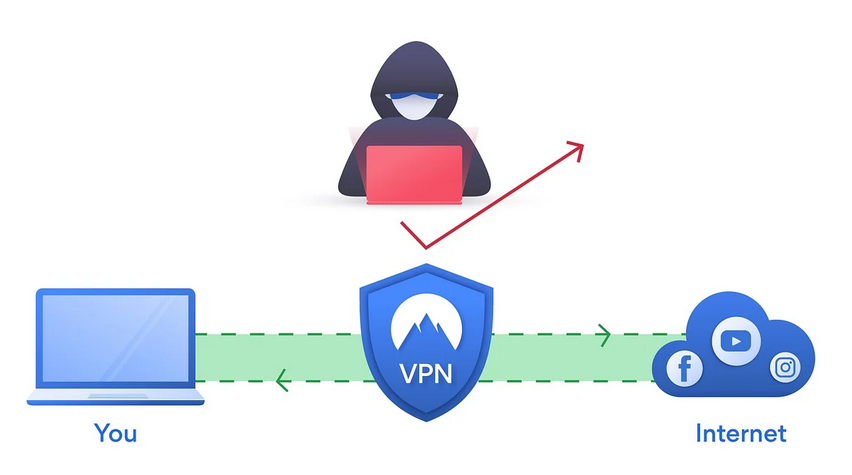
Fig.8: VPN operation diagram
Conclusion
Privacy on the internet isn't just about the browser. It's about your entire digital life — how you communicate, how you use AI, and also how you handle your money.
If you're interested in how to spend crypto without the bank knowing, how to separate your identity from your money, read my review of ether.fi Cash Card. And if you want privacy-focused AI that doesn't track you, check out my article about Venice.ai.